Free Video to GIF Converter: MP4, MOV & WebM to GIF
Convert video to GIF free in your browser: no upload, no sign-up, no watermark. Trim MP4, MOV or WebM clips, pick FPS and width, then download.
Evan Carter Updated: 16 September 2026 7 min read
On this page
To convert video to GIF, load your MP4, WebM, or MOV file into a browser-based converter, set your start and end trim timestamps, choose 10 or 15 fps and a width of 320 to 640 pixels, and render the animation directly on your device without uploading files to remote servers.
Converting video clips into lightweight animated GIFs allows ecommerce sellers, product designers, and content creators to showcase products or visual demos directly in email newsletters, Shopify descriptions, and social feeds where standard video players require manual interaction.
Free toolVideo to GIF ConverterConvert MP4, WebM, and MOV clips into animated GIFs directly in your browser. Trim time ranges, customize frame rates, and resize dimensions privately.
Why convert video clips to animated GIFs?
Standard video formats such as MP4, WebM, and MOV deliver high visual fidelity with efficient modern compression, but they require a media player instance. In many ecommerce contexts—like product cards on Shopify, WooCommerce custom tabs, or support documentation—auto-playing videos with sound can be blocked by mobile browsers or require explicit user permissions.
Animated GIFs loop automatically, load as standard image assets (<img> tags), and work reliably across email clients like Gmail and Outlook where embedded video tags are stripped. For broader fundamentals on creating animations from various sources, review our step-by-step guide to making GIFs on any device.
Step-by-step: How to convert a video to GIF
-
Select your source video file: Open the Video to GIF Converter in your browser. Click choose a file or drag and drop your
.mp4,.webm, or.movfile into the upload zone. Files up to 300 MB are accepted, and because the tool works locally the clip opens immediately instead of uploading. -
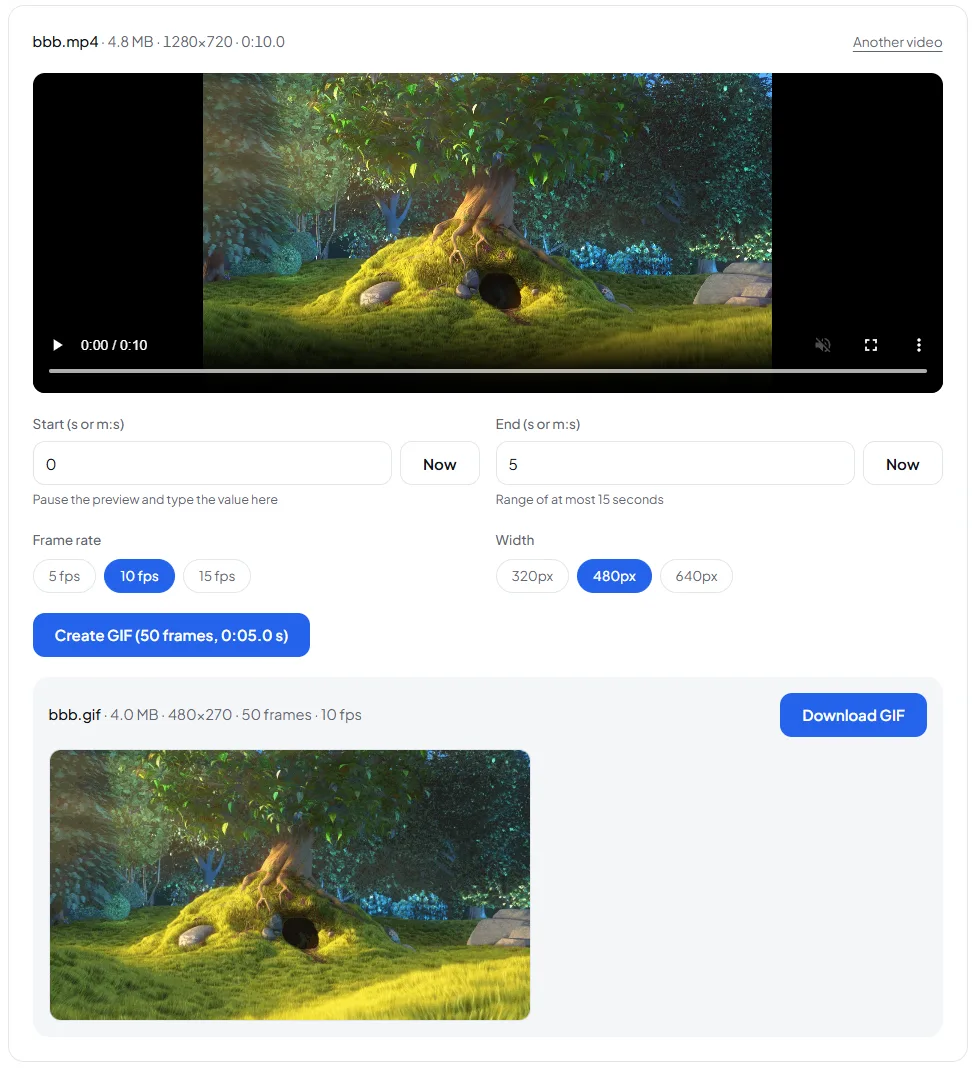
Set the start and end points: Type the times into the Start and End fields (seconds, or minutes:seconds), or play the preview, pause on the right moment and press Now to fill the field for you. The range can be at most 15 seconds; 2 to 6 seconds is what keeps a GIF light.
-
Choose the frame rate: Pick 5 fps, 10 fps or 15 fps. 10 fps is smooth enough for most product demos and screen recordings. The button at the bottom shows how many frames the GIF will contain before you create it.
-
Choose the width: Pick 320px, 480px or 640px. The height follows the original aspect ratio, so nothing is stretched. A 1280×720 source at 480px becomes 480×270.
-
Create and download your GIF: Click Create GIF. When it finishes you see the result with its exact file size, dimensions and frame count next to a Download GIF button. If the file is heavier than you wanted, change the frame rate or width and create it again; nothing needs to be re-uploaded.
Real file sizes at every setting
We ran the same clip through the tool at all nine combinations of frame rate and width. The source was a 5-second range of a 1280×720, 30 fps MP4 with detailed, fast-moving animated footage, which is close to a worst case for GIF:
| Frame rate | 320px wide | 480px wide | 640px wide |
|---|---|---|---|
| 5 fps (25 frames) | 1.0 MB | 2.0 MB | 3.5 MB |
| 10 fps (50 frames) | 2.0 MB | 4.0 MB | 7.0 MB |
| 15 fps (75 frames) | 2.9 MB | 6.0 MB | 10.6 MB |
Two patterns are worth remembering. File size follows the frame count almost exactly, so going from 5 to 10 fps doubles the file. And width matters even more: dropping from 640px to 480px removes about 43% of the weight, and 640px to 320px removes about 72%.
Which settings to pick for each use case
| Where the GIF goes | Suggested setting | Why |
|---|---|---|
| Email newsletters | 10 fps, 320px, 3–4 seconds | Stays near 1–2 MB, which loads quickly in Gmail and Outlook |
| Shopify / WooCommerce product pages | 10 fps, 480px, 3–5 seconds | Detail stays readable while the page remains fast on mobile |
| Marketplace descriptions (eBay, Etsy) | 10 fps, 480px, 3–6 seconds | A good balance under typical image size limits |
| Docs and bug reports (GitHub, Jira) | 10–15 fps, 640px, 4–8 seconds | Text in screen recordings stays legible; flat-colour recordings compress far better than film footage |
| Chat apps (Discord, Slack) | 15 fps, 320px or 480px, 2–5 seconds | Smooth motion matters more than resolution in a chat window |
If you find that your resulting file is slightly too heavy after conversion, you can reduce your GIF file size with lossy compression or adjust GIF pixel dimensions to meet strict email or marketplace limits.
Refining your converted animation
Once your video has been converted into an animated GIF, you may need additional adjustments before publishing it on your storefront or marketing channels:
- Removing unwanted borders: If your original screen recording captured extra desktop space or black bars, use a tool to crop animated GIF dimensions down to the exact subject area.
- Adjusting pacing: If the converted clip plays too slowly or too fast, use a tool to change the GIF playback speed to make product demonstrations snappier.
- Trimming exact frame ranges: If the initial video trim included extra transition frames, you can trim unnecessary GIF frames to create a seamless, perfectly looping animation.
- Creating animations from still photos: If you have a sequence of product photos rather than a continuous video recording, use a dedicated GIF maker for static images to assemble them with custom frame delays.
Common mistakes
- Converting entire uncut videos: Exporting a 30-second video without setting trim points causes the browser to generate hundreds of uncompressed frames, resulting in massive 50MB+ GIF files that crash web pages. Fix this by setting clear start and end timestamps to limit your clip to 3 to 6 seconds.
- Expecting broadcast frame rates: Converting at 30 or 60 fps, as some desktop tools allow, causes ballooning file sizes with diminishing returns on visual clarity. Fix this by choosing 10 fps, which looks smooth for demos and halves the file compared with 20 fps.
- Leaving dimensions at full 4K or 1080p resolution: Rendering GIFs at full camera resolution creates immense files that fail ecommerce platform upload limits. Fix this by choosing 480px or 320px as the output width; in our test that cut the file by 43% to 72% compared with 640px.
- Expecting high-fidelity audio in the output: Assuming that product commentary or background music from the MP4 will play in the GIF leads to broken user experiences. Fix this by adding captions or overlays directly using a tool to add text captions to animated GIFs.
- Uploading private videos to server-based converters: Using cloud-based conversion tools sends sensitive internal screencasts or unreleased product previews to third-party servers. Fix this by using client-side tools that execute video decoding entirely inside your browser sandbox.
Frequently asked questions
What is the best frame rate when you convert video to GIF? A frame rate between 10 and 15 frames per second provides the best balance between smooth motion and manageable file size. Higher frame rates such as 24 or 30 fps create massive files that load slowly on web pages and marketplace listings.
Can I convert video files with sound to GIF? No, the GIF specification does not support audio tracks. Any sound contained in your original MP4, WebM, or MOV file is automatically stripped during the conversion process.
Why is my converted GIF file larger than the original video clip? GIF files are often larger than original video clips because GIF uses uncompressed 256-color frame sequences rather than modern inter-frame video compression like H.264 or VP9. Trimming the clip length and reducing pixel dimensions will lower the output size.
Are my source video files uploaded to an external server during conversion? No, client-side conversion tools process the entire video file locally within your web browser using WebAssembly and canvas rendering. Your source video never leaves your computer or phone.
Start converting your video clips
Transforming product video clips, screen captures, and social recordings into animated GIFs makes your content immediately visible across all devices without depending on video player controls or autoplay permissions. Use the browser-based Video to GIF Converter to trim your clips, configure frame rates, and generate optimized GIFs privately on your device.
- convert video to gif
- mp4 to gif converter
- video to gif online
- convert mov to gif
- webm to gif
- make gif from video clip
You might also like
 GuidesHow to Add Captions to a GIF: Complete Step-by-Step GuideLearn how to add captions to a GIF with clean top or bottom text boxes for memes, social posts, and product teasers directly in your browser.26 September 2026 · 7min read
 GuidesFree WebP to GIF Converter: Convert Animated WebP FilesConvert animated WebP to GIF format directly in your browser. Preserve animation timing, adjust palettes, and solve platform compatibility issues.25 September 2026 · 7min read
 GuidesFree GIF to WebP Converter: Cut File Size, Keep QualityLearn how to convert GIF to WebP in your browser to cut file sizes by over half while keeping smooth animations and full color depth on your web pages.24 September 2026 · 7min read